


 Today morning I was a little bit scared when I saw the traffic stats of one of my affiliated blogs.There was no traffic when I saw in the morning.The reason is that the blog has been flagged as "This site may harm your Computer". in the Google search results.
What is wrong with that blog I really don't know.I made a detailed study of the issue and finally got the issue resolved within 6 hours.It was really a threatening scene for me as I saw this message in the Google Search.Then I went to Safebrowsing which will check about the suspicious activities of a site.There "This site is not currently listed as suspicious." is the message for my blog.
So finally I went into Google Webmaster Tools Dashboard and saw the message as shown in the image.When I clicked the "Details" there expanded explanation regarding the issue can be seen.Previously it had shown one URL indicating that there is malware in one url.But how can this happen as the blog is hosted in Blogger.com. So i wanted to contact them. As you can see that there will be a "Request Review" Link.There I gave detailed report regarding the same and finally got out from the problem to some extent.
"Status of the latest badware review for this site: A review for this site has finished. The site was found clean. The badware warnings from web search are being removed. Please note that it can take some time for this change to propagate. Google users will see a warning page when they attempt to visit pages within this site. You can visit the Google Safe Browsing diagnostic page for your site for detailed information about the problems we found.
Please review StopBadware.org's Security Tips for Websitesand make any necessary changes to your site. When you have cleaned your site, you can request a review, and we'll evaluate your site. Request a review"
I have to see how much time will it take for removing this message in the Webmaster Dashboard.


Saturday, March 14, 2009
Place Adsense Code just below Blog Title

Many of the new bloggers are really eager to know how to place Google Adsense Code right below the Blog Post Title.
But there is a restriction for this as one of the official blogpost of google adsense blog stated that it is not the correct way to place and it violates their TOS unless you refer there as Advertisements or Sponsors.
So follow these simple steps.
1. Here it shows before placing adsense ads.

2.Now you have to create adsense code from "Adsense Setup" of your adsense account.
3.The code that you got finally is Copied[CTRL+C].
4.Now open the Parser.
5.Place your adsense code in the text box provided there.
6.Then click on "Parse" button.

7.Take that Parsed code and search for post-body entry-content and paste just below the div class "post body entry content" as shown below.This will be just above[data:post.body] .

8.Now save your template.
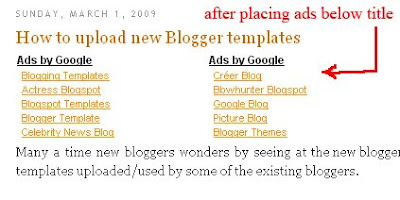
9.The result is you can see the ads just below the post title.


How to Create/Generate Favicon Online
Generating favicons is a good work for the bloggers.They can use the favicon for their blogs that presents them a unique identity in the blogosphere.
What are possible formats?
There are a lot of favicon generators online.Favicon.cc is the best one.Here you can even make animated favicons
Here is another one where you can also create icons by uploading the images which will be automatically converted to the required size
You can generate your own favicons using Photo shop also.See to that those icons should be of 16 x 16 size
Where to host your icons?
There area lot of sites that you can upload your favicons.Google sites,Google pages.Here is some list.
Other best way is to host in Blogger itself !!
What are possible formats?
.ico
.jpg
.bmp
.png
Then how to generate favicon?.jpg
.bmp
.png
There are a lot of favicon generators online.Favicon.cc is the best one.Here you can even make animated favicons
Here is another one where you can also create icons by uploading the images which will be automatically converted to the required size
You can generate your own favicons using Photo shop also.See to that those icons should be of 16 x 16 size
Where to host your icons?
There area lot of sites that you can upload your favicons.Google sites,Google pages.Here is some list.

Other best way is to host in Blogger itself !!
Thursday, March 12, 2009
How to add "Read More/Continue Reading" in Blogger

This is a real good trick that helps Blogger.com users a big plus point.Using this trick,you can give your blog a website look by keeping "Read More" or "Continue Reading" or anything else in the home page or achieves of your blog.

1.First of all go to your "Dashboard".
2.Choose the "Layout" of the blog for which you are going to keep "Read More".
3.Then go to "Edit HTML" tab.
4.Here we are going to just two codes.
a.One is for style sheet.
b.Other for actual code.
5.So first of all we have to code for our style sheet.Since we dont have a separate style sheet/CSS or code in our custom templates, we have to create that part.This is shown below.

6. Then add this code between

7.It it has to look like this

8.Then the actual code

9.As shown here
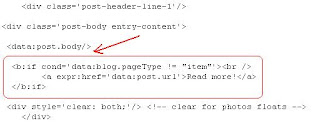
That's all now we have to add some code for each post like this

To reduce this risk of adding the same for each post,you can add here

Finally it looks like this on home page

Sunday, March 1, 2009
How to upload new Blogger templates
Many a time new bloggers wonders by seeing at the new blogger templates uploaded/used by some of the existing bloggers.
Here is a simple tutorial on how to upload a new blogger template.
1.Login to your Blogger account.
2.In the "Dashboard",choose the "Layout" of the blog for which you are going to change the Blogger Template.
3.Here you can upload in two ways.
a.One is to upload your own Blogger templates.
b.The other method is to upload existing custom blogger templates that are present at "PickNewTemplates" tab.
4.For 3(a),Go to "Edit HTML"

First of all please Download Full Template.This is to back up your present template.If the new template that you are going to upload makes/gets into some errors or if you make more complex errors in that,then you will loose everthing.So make sure that you back up your template.
After downloading your present template,you can "Browse" your new template and the "Upload" it.

And finally save it.If everthing goes right and no corrections are needed means,you had successfully uploaded the new template.
But sometimes some sort of errors will be seen like "bx356xx" ....
5.For 3(b),this is the simplest way of uploading new and custom templates.

Tuesday, February 24, 2009
How to Remove or Hide Navbar from blogger-Tutorial

We usually use navbar to search something and also it do has "Next"botton.
It is also used to "Flag" blogs.
But if you want to give yor blog a website look,you really thinks of removing the navbar that is present right at the top of the blogger header.
The process is simple.

1.First Go to Layout.
2.The choose Edit HTML.and go to the position marked in the picture.
 3.Then the following code should be added above the #header-wrapper as shown in the picture
#navbar {
height: 0px;
visibility: hidden;
display: none;
} After placing the code,click on the "Save Template" to save the changes.
That's it !! Now there is no navbar .It's gone.
This tutorial is for just hiding the navbar and it not against of Blogger Terms of service.

Subscribe to:
Posts (Atom)
Get Email Updates


